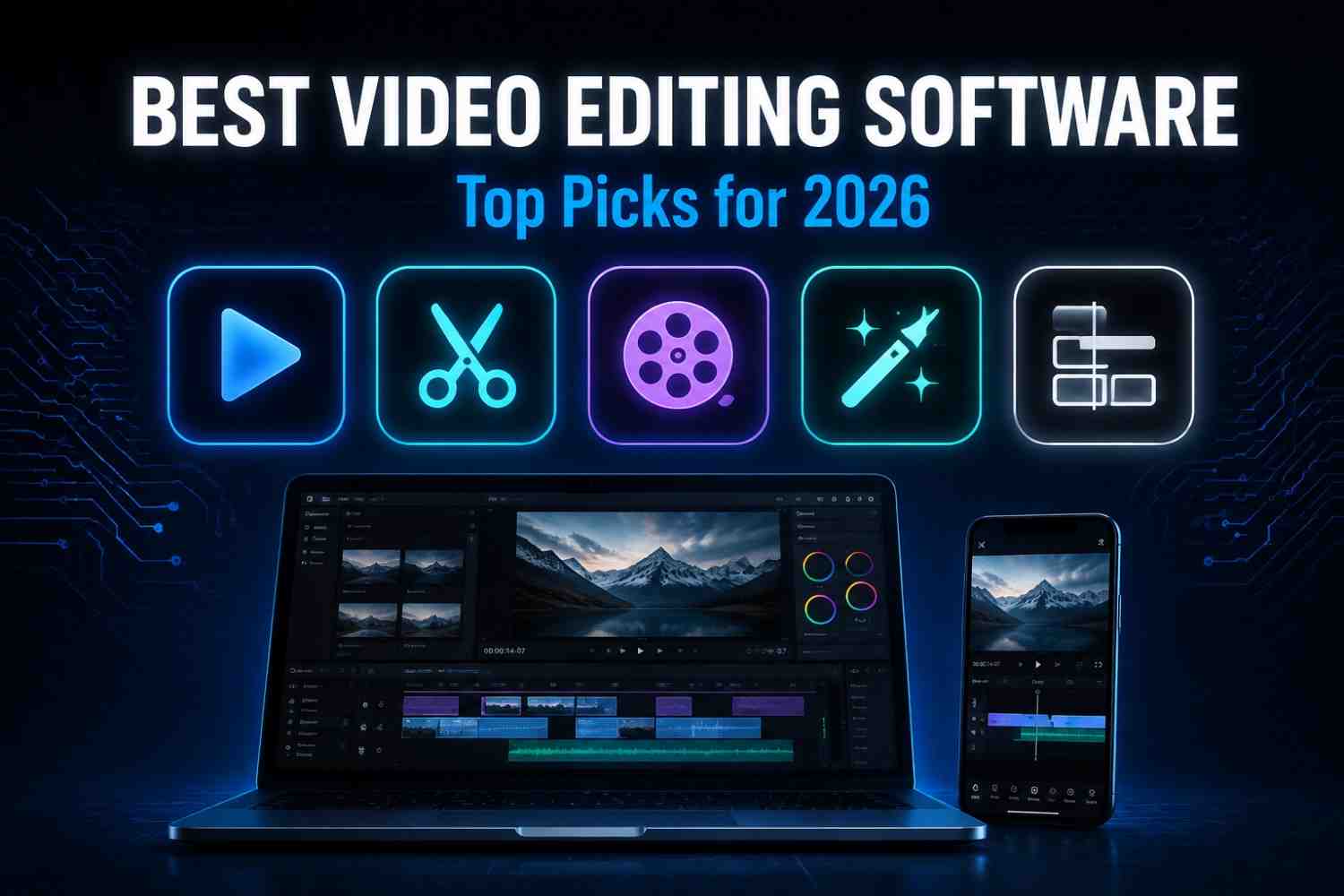
Best Video Editing Software (2026 Guide)
I’ve spent the better part of the last three years editing everything from wedding highlight reels to YouTube vlogs to quick Instagram Reels, and if there’s one thing I’ve learned, it’s this: the “best” editing tool doesn’t exist in a vacuum. It exists relative to what you’re trying to make, what device you’re holding, and honestly, how much patience you have for a learning curve.
I’ve personally installed, tested, and edited real projects in every tool on this list not just skimmed a feature page and copy-pasted a spec sheet. Some of these apps I’ve used for years (Premiere Pro is basically muscle memory at this point), others I downloaded specifically to write this guide and see if they held up. This article is the result of that hands-on testing, combined with what actually matters when you’re comparing different video editing softwares in 2026.
What Is Video Editing Software?
In simple terms, it’s a program desktop or mobile that lets you cut, arrange, trim, and enhance raw video clips into a finished, watchable video. It handles the basics like trimming and transitions, and in more advanced tools, it also handles color grading, audio mixing, motion graphics, and export to formats suited for YouTube, TikTok, or broadcast. In short, it’s the bridge between raw footage and a video people actually want to watch.
Best Video Editing Software for Every Creator
I tested this next batch on real footage some 4K drone clips, some shaky phone videos, a couple of screen recordings because that’s the only honest way to judge editing software. Here’s how each one held up.
Adobe Premiere Pro
Premiere Pro is still the industry standard, and after years of using it professionally, I understand why. It’s the tool most editing houses, YouTubers, and agencies build their workflow around, mainly because it plays so well with After Effects and Photoshop. The learning curve is real I remember getting lost in the panels the first week but once it clicks, there’s very little you can’t do with it. It runs $22.99/month on the current plan, and honestly, for anyone doing this professionally, it pays for itself within the first client project.
DaVinci Resolve
I switched a chunk of my personal projects to DaVinci Resolve mainly for the color grading, and I was genuinely surprised the free version is this capable. It’s built around two workflows Cut and Edit so beginners aren’t overwhelmed and pros still get a full node-based color suite. The Studio version costs a one-time $295, but the free tier alone is enough for most creators. If you want the best free video editing software for Windows or Mac, this is where I’d point you first.
Final Cut Pro
Final Cut Pro is Apple’s answer for creators who live inside the Mac ecosystem, and it shows the magnetic timeline and background rendering make editing on Apple Silicon feel almost instant. I edited a 20-minute travel vlog on it and never once saw the spinning wheel of doom. It’s a one-time purchase of $299.99, which, compared to subscription fatigue elsewhere, actually feels refreshing.
Clipchamp
Clipchamp is Microsoft’s browser-based editor, and it’s the one I recommend to people who just need something fast without installing anything. I used it to trim and caption a quick internal training video, and it took under ten minutes start to finish. The free plan works fine for basic edits; removing the watermark and exporting above 1080p runs about $11.99/month.
Adobe Premiere Rush
Rush is Premiere’s lighter sibling, built for creators who need to shoot, edit, and post without switching devices. I’ve used it on my phone between meetings to cut down raw clips before moving them to Premiere Pro for the final polish. It’s free to start, with the full Adobe Express plan unlocking everything for $9.99/month.
Luxea Pro
Luxea Pro doesn’t get talked about as much, but it deserves more credit especially for Windows users who want a clean interface without Adobe’s price tag. I found the drag-and-drop workflow intuitive even without a tutorial. It’s $49.99 annually, or $99.99 for a lifetime license, which is a solid deal if you’re editing regularly.
Wondershare Filmora
Filmora has leaned hard into AI tools recently auto color match, noise removal, that sort of thing and I tested a few of them on old, poorly-lit footage with decent results. It’s genuinely one of the friendliest options for beginners who still want some creative control. Pricing runs $29.99/quarter for the cross-platform plan or $79.99 for a single-platform lifetime license.
iMovie
iMovie is still, in my opinion, the most underrated free tool for Mac and iPhone users. I used it to cut a family video last year and had it done before my coffee got cold. It’s not built for professional work, but for quick, clean personal edits, it’s hard to beat especially at zero cost.
Best Video Editing Software for Android
Mobile editing is a different beast entirely smaller screens, touch controls, and usually a tighter deadline (posting before the moment passes). I edited short clips on each of these apps directly on my phone to see which ones actually kept up.
CapCut Video Editor
CapCut remains the free app I reach for most on Android when I need something fast and trend-ready. Owned by ByteDance, it’s built with TikTok and Reels in mind, and features like auto-captions, motion tracking, and background removal make it punch well above its “free” price tag.
KineMaster
KineMaster is my pick when audio actually matters voiceovers, layered soundtracks, precise fades. I remixed a friend’s short clip using it and appreciated how much control it gives over multiple audio tracks. The free version adds a watermark; premium removes it for $44.99/year.
InShot
InShot is what I hand to people who want to combine a handful of clips and photos into one collage-style video without overthinking it. Stickers, picture-in-picture, and cropping tools are all right there. It’s free with ads and a watermark, both removable through a subscription.
CyberLink PowerDirector Mobile
PowerDirector Mobile is the closest thing to a desktop-grade editor in your pocket. I used it for a vertical project that needed chroma-keying, and it handled it without lag. Subscribers also get stock footage access from Shutterstock, Getty iStock, and Pixabay.
Canva
Canva isn’t a traditional video editor, but for small business owners and non-designers making branded content, it’s genuinely useful I’ve used its templates to whip up quick promotional clips without touching a timeline. Pro access starts at $119.99/year.
GoPro Quik
If you shoot action footage, Quik is worth having installed. I tested it with some GoPro hiking clips, and the automatic highlight-reel feature saved me a good hour of manual cutting. A subscription unlocks most of the useful features.
Splice
Splice has one of the cleanest mobile interfaces I’ve tested, with support for picture-in-picture, masks, and HDR export. Pricing is $4.99/week, $14.99/month, or $99.99/year, depending on how often you edit.
YouCut
YouCut is a solid, no-frills option for standard cuts, trims, and transitions. I used it for a quick birthday video and it did exactly what was needed without any hidden complexity. It’s free with ads, or $7.99/year to remove them.
How to Choose the Right Video Editing Software?
After testing this many tools, a pattern became clear the “best” choice always comes down to a few honest questions:
- Skill level: are you comfortable with a learning curve, or do you want something intuitive from minute one?
- Device compatibility: will you be editing primarily on desktop, Android, or switching between both?
- Editing features: do you need color grading and multi-track audio, or just trims and text?
- Export quality: does the app support 4K, or does it cap you at 1080p?
- Pricing: is a one-time purchase, subscription, or free tier more realistic for your budget?
- Performance: does it run smoothly on your specific hardware, or does it stutter and crash?
Desktop vs Mobile Video Editing Software
In my experience, desktop video editing software wins when the project needs precision color grading, layered audio, detailed transitions simply because you have more screen real estate and processing power to work with. Mobile editing apps win on speed:
I can shoot, edit, and post a Reel from my phone in the time it would take to just open Premiere Pro on my laptop. Neither one is objectively “better” they solve different problems, and most serious creators I know end up using one of each.
Which Video Editing Software Is Best for You?
If you’re a professional or working toward client-based editing work, Premiere Pro or Final Cut Pro (if you’re on Mac) are still the strongest long-term investments. If budget is the priority, DaVinci Resolve gives you an almost absurd amount of free power.
For beginners who just want something that works without a manual, iMovie or Filmora are the friendliest starting points. And if you’re editing entirely on your phone for TikTok or Reels, CapCut is still the fastest route from raw clip to posted video.
Frequently Asked Questions
Which is the best video editing software for beginners?
Based on my own testing, iMovie (for Mac users) and Wondershare Filmora (cross-platform) are the easiest to pick up without any prior editing experience.
Which video editing software is free?
DaVinci Resolve offers the most powerful free tier for desktop, while CapCut and iMovie are the strongest completely free options for mobile and Mac respectively.
Which software is best for YouTube videos?
Premiere Pro is the industry go-to for YouTube creators who want full control, though DaVinci Resolve is a strong free alternative if budget is tight.
Which video editing software works on Android?
CapCut, KineMaster, InShot, CyberLink PowerDirector Mobile, Canva, GoPro Quik, Splice, and YouCut all run on Android, each suited to slightly different editing needs.
Conclusion
There’s no single “best” editing tool that works for everyone there’s only the right one for what you’re actually trying to make. After testing all of these tools hands-on, my honest advice is this: if you’re serious about editing as a career or business, invest the time in Premiere Pro or DaVinci Resolve.
If you’re editing for fun or for social media on the go, CapCut, iMovie, or Filmora will get you there faster with far less friction. Whatever you choose, the right video editing software is the one that gets out of your way and lets you tell the story you actually set out to tell.