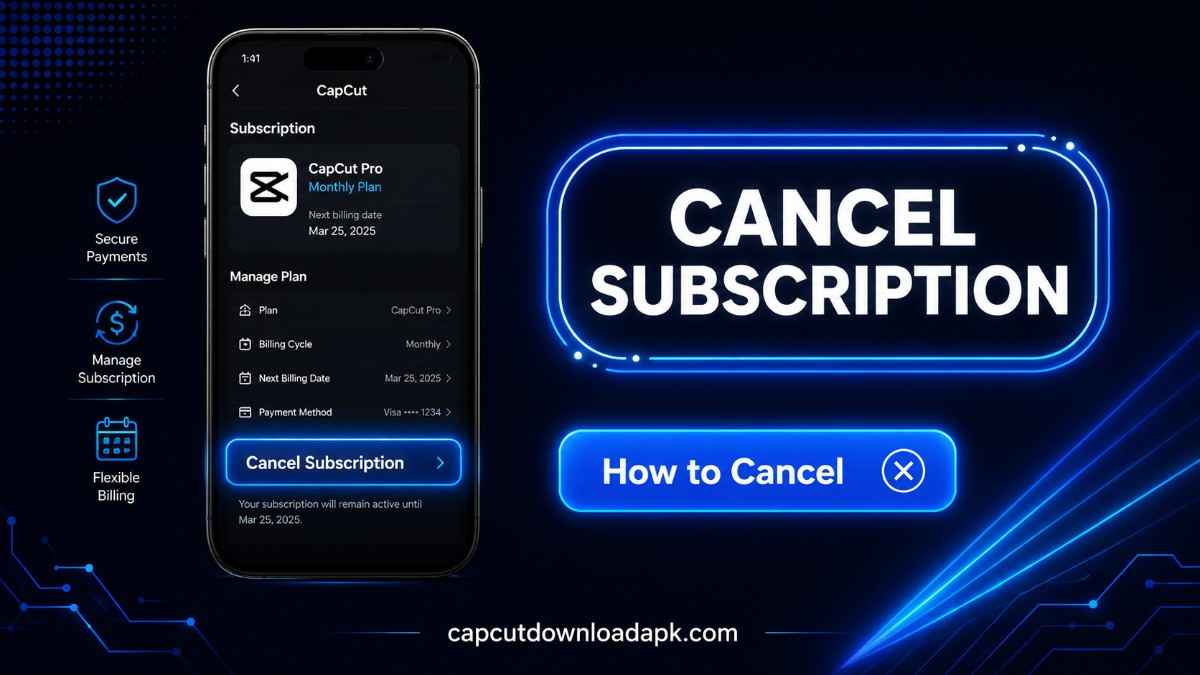
How to Cancel CapCut Subscription? (Android, iPhone & Web Guide)
I canceled my CapCut Pro subscription about four months ago, and I’ll admit, I almost didn’t bother writing about it because I assumed it would be a two-minute task. It wasn’t, not because the process itself is complicated, but because CapCut buries the cancel button in a different place depending on whether you subscribed through Google Play, the Apple App Store, or CapCut’s own website and I’d genuinely forgotten which one I’d used. I ended up checking all three before I found the right one.
If you’re in the same spot, this guide walks through every platform, what actually happens to your projects and Pro features after you cancel, how refunds work, and the specific problems people run into that nobody warns you about beforehand.
How to Cancel CapCut Subscription Quickly?
Quick Answer
The fastest way depends entirely on where you originally subscribed. If you paid through the Google Play Store, cancel from your Play Store subscriptions page, not inside the CapCut app itself. If you paid through Apple, it’s the same rule go to your iPhone’s Settings, not the app. If you subscribed directly on CapCut’s website, you cancel from your CapCut account billing page. Subscribing and canceling through the app’s own subscription button often just redirects you to one of these three places anyway, so skipping straight there saves time.
What Happens After You Cancel Your Subscription?
Canceling doesn’t cut you off immediately. You keep every Pro feature until your current billing period actually ends, and after that, your account simply reverts to CapCut’s free plan. Your projects, videos, and account itself stay exactly where they were canceling a subscription and deleting an account are two completely separate actions.
Things to Know Before Canceling Your CapCut Subscription
Your Pro Features Until the Billing Period Ends
This caught me off guard the first time I canceled mid-month expecting to lose Pro access right away, but CapCut let me keep using premium effects, HD exports, and cloud storage until the date I’d already paid through. If you’ve got an active project, there’s genuinely no reason to rush the cancellation itself; just make sure you cancel before the next renewal date hits.
Difference Between Canceling and Deleting Your Account
Canceling your subscription stops future billing but keeps your account, login, and saved projects intact. Deleting your account is a separate, more permanent action that removes your data entirely. If you just want to stop paying, cancel the subscription don’t delete the account unless that’s specifically what you want.
Will You Lose Your Projects?
No. Your existing projects remain accessible after cancellation, though some Pro-only assets, effects, or fonts used in those projects may show as locked or unavailable once you’re back on the free plan. I had one project with a Pro transition effect that reverted to a basic cut after my subscription ended the project itself wasn’t deleted, just that one element.
How to Cancel CapCut Subscription on Android?
Cancel Through Google Play Store
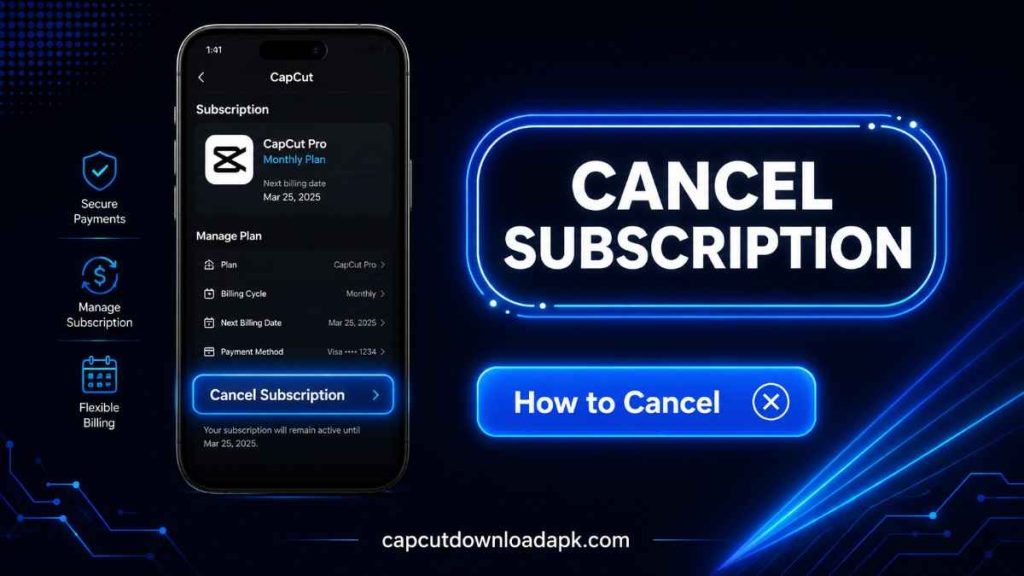
Open the Google Play Store app, tap your profile icon in the top right, then go to Payments & Subscriptions, followed by Subscriptions. Find CapCut in the list, tap it, then tap Cancel Subscription and confirm. This is the same process regardless of whether you’re canceling CapCut Pro or any other Play Store subscription, since Google handles the billing centrally rather than CapCut itself.
Verify That Your Subscription Has Been Canceled
After confirming, the subscription status in Play Store should change to show an end date instead of an active renewal date. I’d recommend screenshotting this confirmation screen, just in case you need to reference it if a charge shows up later.
How to Cancel CapCut Subscription on iPhone or iPad?
Cancel Through Apple App Store Settings
Open Settings on your iPhone, tap your name at the top, then tap Subscriptions. Find CapCut in the list, tap it, and select Cancel Subscription. Like Android, this is managed through Apple’s billing system rather than inside the CapCut app itself, which is why searching for a cancel button within CapCut usually leads nowhere.
Confirm Your Cancellation Status
Once canceled, the subscription page in Settings will show your access end date rather than an active renewal. Apple typically sends a confirmation email too, which is worth keeping for your records.
How to Cancel CapCut Subscription on the Web?
Cancel Through the CapCut Website
If you subscribed directly through capcut.com rather than an app store, log into your account on the website, go to your account settings, and look for the Subscription or Billing section. From there, you’ll find an option to manage or cancel your current plan.
Check Your Active Subscription
Your account dashboard will show which plan you’re on and your next billing date. If you don’t see an active CapCut Pro subscription listed here at all, it likely means you actually subscribed through Google Play or the App Store instead, and you’ll need to cancel from there.
Can You Get a Refund After Canceling?
Google Play Refund Policy
Google generally allows refund requests within 48 hours of a charge through the Play Store’s own refund request process, though approval isn’t guaranteed for renewals you didn’t catch in time.
Apple App Store Refund Policy
Apple handles refund requests through reportaproblem.apple.com, and similar to Google, recent charges have a better chance of approval than older ones. Apple reviews each request individually rather than issuing automatic refunds.
CapCut Billing and Refund Considerations
For subscriptions purchased directly through CapCut’s website, refund requests go through CapCut’s own customer support rather than Google or Apple. In my experience, having your original purchase confirmation ready speeds up the process considerably.
Common Problems When Canceling a CapCut Subscription
Subscription Still Active After Cancellation
This usually means the cancellation went through on the billing platform, but the change hasn’t synced back to CapCut’s app yet. It can take a few hours to reflect. If it’s been over 24 hours and Pro features still show as active, that’s worth contacting support about directly.
Can’t Find the Subscription
If CapCut doesn’t appear in your Play Store or App Store subscription list, double-check you’re logged into the same Google or Apple account you originally subscribed with this is the single most common reason people can’t locate it.
Charged After Canceling
This almost always traces back to canceling too close to the renewal date, after billing had already processed for the next cycle. Canceling at least a day before your renewal date avoids this entirely.
Wrong Google or Apple Account
If you use multiple Google or Apple accounts across devices, it’s easy to check the wrong one and assume CapCut isn’t listed. Check every account you’ve used to sign in if the subscription seems to have vanished.
Alternatives to Canceling CapCut Pro
Downgrade to the Free Plan
If cost is the main issue but you still want some CapCut access, letting your subscription lapse naturally at the end of the billing cycle achieves the same result as an active cancellation, just without needing to act before a specific renewal date.
Pause Your Subscription (If Available)
Depending on your region and billing platform, some subscriptions offer a pause option instead of a full cancellation, which can be useful if you just need a short break rather than stopping entirely.
Keep Using Existing Projects
Remember that canceling doesn’t touch your existing projects, so if your main concern is losing past work, that’s not actually something cancellation affects at all.
Frequently Asked Questions
How do I cancel my CapCut subscription?
Cancel through whichever platform you originally subscribed on: Google Play Store on Android, Settings on iPhone, or your account billing page if you subscribed through CapCut’s website directly.
How do I cancel CapCut Pro on Android?
Open Google Play Store, go to Payments & Subscriptions, find CapCut, and tap Cancel Subscription.
How do I cancel CapCut Pro on iPhone?
Open Settings, tap your name, go to Subscriptions, find CapCut, and select Cancel Subscription.
Will I lose my projects after canceling?
No, your projects remain in your account. Only Pro-exclusive assets or effects used within those projects may become locked once you’re back on the free plan.
Can I get a refund after canceling?
It depends on your billing platform and how recently you were charged. Google and Apple both handle refund requests within a limited window after a charge, while direct CapCut subscriptions go through CapCut’s own support team.
Can I subscribe again later?
Yes, you can resubscribe to CapCut Pro at any time after canceling, and your account and past projects will still be there when you do.
Conclusion
When You Should Cancel CapCut Pro?
If you’ve stopped using the Pro features regularly, finished the project that needed them, or found the subscription cost no longer worth it for how often you edit, canceling makes sense and as this guide covers, it’s genuinely straightforward once you know which platform to cancel through.
When Keeping the Subscription Makes Sense?
If you’re mid-project and relying on Pro-only effects, exports, or storage, it’s worth waiting until you’ve wrapped up before canceling, since you’ll keep full access until your billing period naturally ends anyway.