How to Fix CapCut Network Errors? (Complete Troubleshooting Guide)
I still remember the night I was editing a client’s Instagram reel at 1 AM, export button hit, and CapCut threw a “network error” out of nowhere Wi-Fi was working fine, YouTube was loading, everything looked normal except CapCut. That one error cost me almost an hour of trial and error before I figured out it wasn’t my internet at all, it was a DNS conflict. Since then I’ve run into this error enough times, on both Android and PC, that I’ve basically got a checklist memorized. That’s what this guide is not theory, but the actual steps that worked for me and for the people I’ve helped fix this.
What Is the CapCut Network Error?
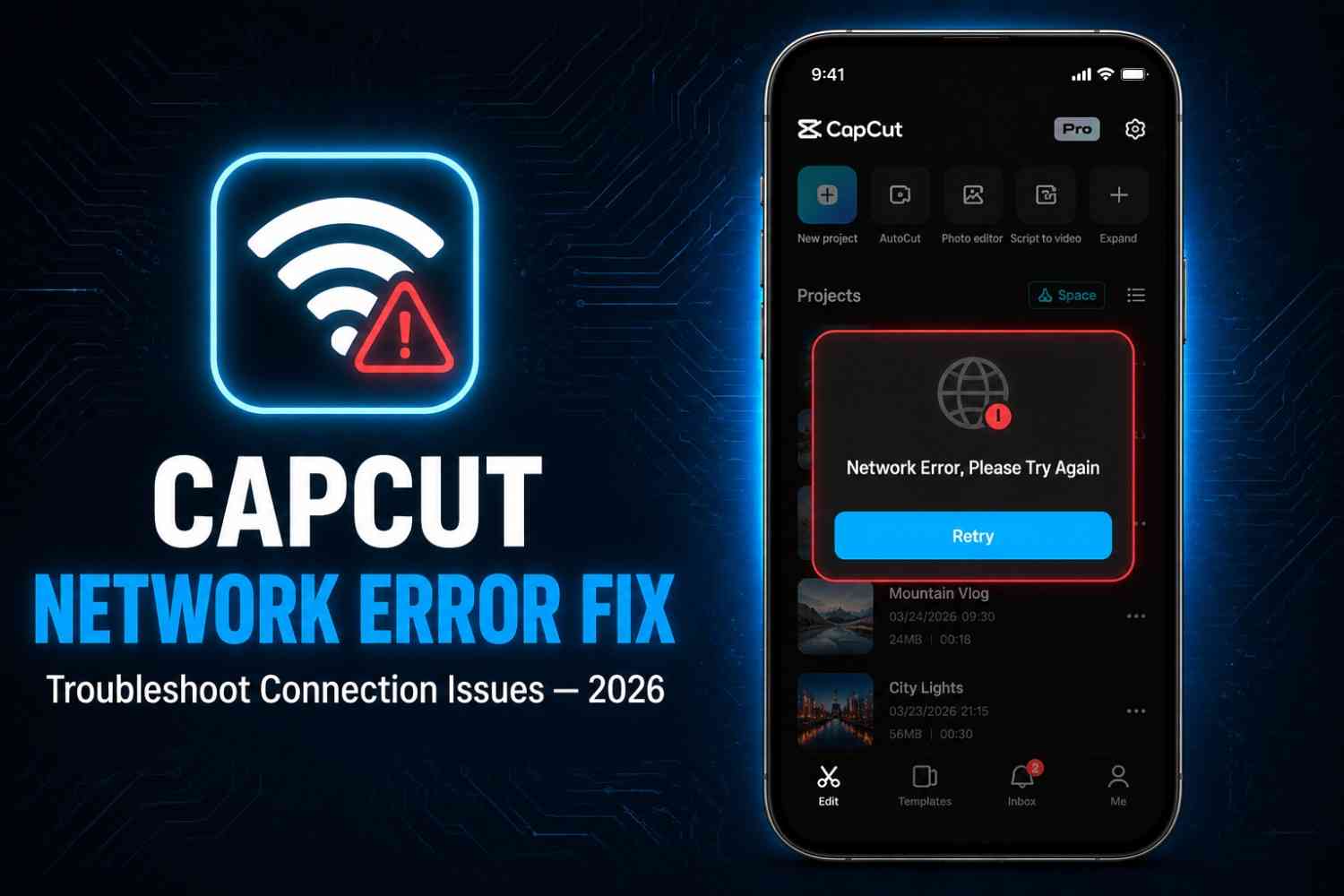
The CapCut network error happens when the app fails to connect to CapCut’s servers, even though your device shows an active internet connection. It usually pops up while opening the app, loading templates, saving a project, or exporting a video, and it can show up as a blank error box, a “check your connection” prompt, or the export simply freezing at 0%.
Short answer: In most cases, a CapCut network error is fixed by clearing the app cache, updating CapCut to the latest version, and turning off any active VPN or proxy. If none of that works, the issue is usually on CapCut’s server side, not your device.
This error tends to appear right after an app update, after switching between Wi-Fi and mobile data, or when you’re using CapCut in a region where it’s partially restricted.
Why Does CapCut Show Network Errors?
Before jumping into fixes, it helps to know what’s actually causing the problem. In my experience, it’s almost always one of these seven reasons.
Weak or Unstable Internet Connection
This is the most common one. CapCut needs a steady connection to sync templates, fonts, and cloud assets. Even a strong-looking Wi-Fi signal can have packet loss that breaks CapCut’s connection while leaving other apps unaffected.
CapCut Is Restricted in Your Region
CapCut is officially restricted or unavailable in a handful of countries due to local regulations. If you’re in one of those regions, the app may connect intermittently or fail entirely, regardless of how good your internet is.
Outdated CapCut Version
An old CapCut version often can’t talk to updated servers properly. I’ve seen this exact error disappear the moment someone updated from a version that was just two releases behind.
Corrupted Cache or App Data
CapCut stores a lot of temporary data thumbnails, project previews, template previews and when this cache gets corrupted, it can block new server requests entirely, showing up as the same connection error even though the network itself is fine.
Incorrect DNS or Network Settings
This was my exact case. Some ISPs or routers use DNS servers that struggle to resolve CapCut’s domains quickly, causing repeated timeouts that look exactly like this.
VPN, Proxy, or Firewall Conflicts
VPNs, proxy apps, and firewalls all intercept traffic before it reaches CapCut’s servers. A VPN with a slow or blocked server, or a firewall rule blocking the CapCut app, produces the same symptom: connection refused.
CapCut Server Downtime
Sometimes it really isn’t you. CapCut’s servers do go down for maintenance or during traffic spikes, and during that window, no fix on your end will help.
How to Fix CapCut Network Errors?
Here’s the order I actually go through when this happens start from the top, and you’ll likely fix it within the first four or five steps.
Check Your Internet Connection
Open a browser and load a heavy page or stream a short video. If it loads slowly or not at all, restart your router and reconnect your device before touching CapCut again.
Restart the CapCut App
Force-close CapCut completely (not just minimize it), wait about ten seconds, then reopen it. This alone clears a surprising number of temporary connection glitches.
Clear CapCut Cache and App Data
Go to your phone’s Settings > Apps > CapCut > Storage, and tap Clear Cache first. If the error persists, clear app data too you won’t lose saved projects, only temporary files.
Update CapCut to the Latest Version
Head to the Play Store or App Store, search CapCut, and check for a pending update. Server-side changes on CapCut’s end often require the newest app version to communicate properly.
Disable VPN or Proxy Services
Turn off any VPN or proxy app running in the background. If you genuinely need one because CapCut is restricted in your area, switch to a different, reliable server location and test again.
Change DNS Settings
This fixed it for me. Go to your Wi-Fi settings, open advanced/network settings, and switch your DNS to Google DNS (8.8.8.8 and 8.8.4.4) or Cloudflare DNS (1.1.1.1). Reconnect and reopen CapCut.
Check CapCut Server Status
Search “CapCut down” on Twitter/X or check a site like DownDetector. If reports are flooding in, the issue is on their end just wait it out.
Turn Off Battery Saver or Data Saver Mode
Battery and data saver modes restrict background network access for apps, which can silently block CapCut’s connection. Disable both while using the app.
Reinstall CapCut
If nothing above has worked, uninstall CapCut completely, restart your device, then install it fresh from the official store. This resolves deeper corruption issues that a cache clear can’t touch.
Use CapCut Web as an Alternative
If the mobile app keeps failing, CapCut’s web version on a PC browser uses the same account and projects, and it’s often unaffected by mobile network or app-specific issues.
Advanced Troubleshooting If CapCut Still Doesn’t Work
If you’ve tried everything above and CapCut is still throwing the same error, these deeper fixes usually solve it.
Restart Your Device
A full device restart clears background processes and temporary network locks that a simple app restart can’t touch.
Reset Network Settings
On both Android and iOS, resetting network settings (found under Settings > General/System > Reset) wipes out saved Wi-Fi, VPN, and APN configurations that might be silently conflicting with CapCut.
Check Device Date and Time
This sounds unrelated, but a wrong date or time breaks the secure connection (SSL) between your device and CapCut’s servers. Set date and time to “Automatic” in your device settings.
Allow CapCut Network Permissions
On some Android devices, background data or unrestricted data usage for CapCut is turned off by default. Go to Settings > Apps > CapCut > Mobile Data & Wi-Fi, and make sure both are allowed.
Contact CapCut Support
If none of this works, the issue may be account-specific or a rare server bug. Reach out through CapCut’s in-app “Help & Feedback” section with your device model and app version it speeds up their response.
How to Prevent CapCut Network Errors?
Fixing the error once is fine, but here’s what actually stops it from coming back, based on what’s worked for me long-term.
Keep CapCut Updated
Turn on auto-updates so you’re never running an outdated version that’s out of sync with CapCut’s servers.
Use a Stable Internet Connection
Where possible, prefer Wi-Fi over mobile data for exporting and syncing large projects, and avoid editing on unstable public networks.
Clear Cache Regularly
Clearing CapCut’s cache every couple of weeks keeps the app light and prevents corrupted files from building up.
Avoid Untrusted VPNs
Free or low-quality VPNs are one of the biggest hidden causes of this recurring problem. If you need one, stick to a reputable provider.
Monitor CapCut Server Status
If you edit professionally on tight deadlines, a quick check of CapCut’s server status before a big export can save you from last-minute surprises.
Frequently Asked Questions
Why is CapCut showing a network error even with Wi-Fi?
Your Wi-Fi may be connected but still have DNS issues, packet loss, or a firewall blocking CapCut specifically, even though other apps work fine.
Can a VPN cause CapCut network errors?
Yes. A VPN can route your traffic through a slow, blocked, or region-restricted server, which CapCut’s servers may reject entirely.
How do I know if CapCut servers are down?
Check CapCut’s official social media accounts or a third-party outage tracker like DownDetector for recent reports from other users.
Does clearing the cache fix CapCut network errors?
In many cases, yes. A corrupted cache is one of the most common causes, and clearing it resolves the error without needing to reinstall the app.
Can I use CapCut Web if the mobile app isn’t working?
Yes, CapCut Web runs on the same account and syncs your projects, making it a reliable backup when the mobile app has connection issues.
Conclusion
A CapCut network error is almost never a mystery once you know where to look. Nine times out of ten, it’s your cache, your DNS, or a VPN getting in the way and the fixes above, in order, will get you back to editing within minutes. If it’s genuinely CapCut’s servers acting up, the only real fix is patience, so check the server status and try again shortly after. Keep the app updated, your cache clean, and your connection stable, and you’ll rarely see this error again.