CapCut vs InShot | Which Video Editing App Is Better in 2026?
I’ve been editing short-form videos for clients and my own social pages for about three years now, and if there are two apps that have lived on my phone the entire time, it’s CapCut and InShot. I’ve cut Reels in both, exported the same 60-second clip from both apps just to compare file size and quality, and even talked friends out of buying InShot Pro when CapCut could do the job for free.
So when people ask me “CapCut vs InShot, which one should I actually download,” I don’t answer from a spec sheet I answer from having sat there at 1 a.m. trying to fix a shaky transition in both apps.
This guide breaks down CapCut vs InShot the way I’d explain it to a friend: what each app actually does well, where it falls short, and which one fits your specific kind of content. No fluff, no recycled marketing copy just what I’ve noticed after using both apps on a daily basis, and what I’d genuinely tell you before you download either one.
CapCut vs InShot at a Glance
If you’re in a hurry, here’s the short version of the CapCut vs InShot debate.
| Feature | CapCut | InShot |
| Best for | Trending edits, AI tools, templates | Quick, simple trims and basic edits |
| Learning curve | Slightly steeper, more powerful | Very beginner-friendly |
| Free version | Fully free, minimal restrictions | Free with watermark/ads |
| Max export quality | Up to 4K | Up to 4K (Pro) / 1080p free |
| Templates | Huge, TikTok-trend-driven library | Smaller, simpler preset library |
| AI features | Extensive (auto-captions, AI effects, background removal) | Limited, basic AI filters |
| App size | Around 300MB+ | Around 60–90MB |
My quick take: if you create content regularly for TikTok, Instagram Reels, or YouTube Shorts and want more creative control, CapCut wins. If you just want to trim a clip, add a caption, and post it in two minutes without thinking too hard, InShot still gets the job done. Keep this CapCut vs InShot snapshot in mind as we go deeper it’ll make more sense once you see the reasoning behind it.
Before we get deeper into the CapCut vs InShot comparison, it helps to know what each app actually is and who built it.
What Is CapCut?
CapCut is a free mobile and desktop video editing app built by ByteDance yes, the same company behind TikTok. That connection isn’t just a fun fact; it’s the reason CapCut feels tailor-made for short-form, trend-based content. When a new TikTok sound or transition style blows up, CapCut usually has a ready-made template for it within days.
I started using CapCut back when it was still called “Viamaker” in some regions, and the jump in quality since then has been noticeable. It now supports keyframe animation, multi-layer editing, green screen (chroma key), auto-captions, and an AI toolkit that keeps expanding with every update.
Key Features of CapCut
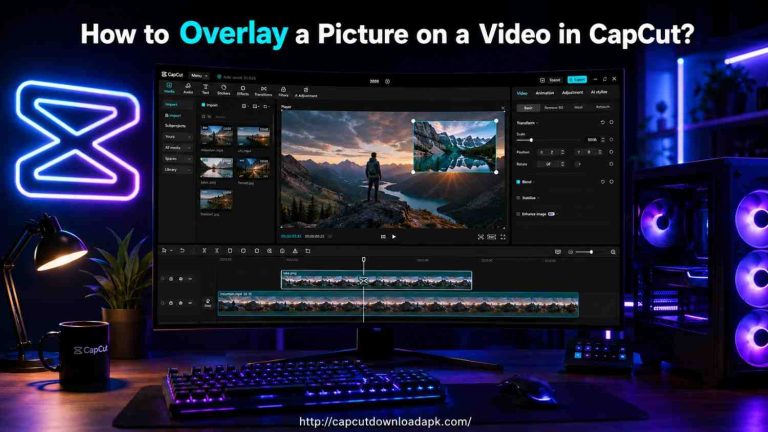
- Multi-layer timeline – stack videos, images, text, and audio on separate tracks
- Keyframe animation – animate zoom, rotation, and position smoothly
- AI tools – auto-captions, background removal, AI-generated effects, and text-to-speech
- Massive template library – trending, TikTok-style templates updated constantly
- 4K export – with adjustable frame rate
- Royalty-free music library – large and regularly updated
Who Should Use CapCut?
CapCut suits anyone who posts regularly on TikTok, Reels, or Shorts and wants their edits to look a step above the basics creators, small business owners running their own social pages, and even beginners who don’t mind a slightly bigger app to learn.
What Is InShot?
InShot has been around longer than most people realize it built its name as a photo and video editor before short-form video even took off the way it has now. It’s a lighter app, both in file size and in how it feels to use. Open it, pick your clip, trim it, slap on a caption or sticker, and you’re done in under three minutes.
I keep InShot installed mainly for quick jobs a birthday video for a group chat, a simple product clip, something that doesn’t need layers or AI tricks. It doesn’t try to be everything; it just does the basics reliably.
Key Features of InShot
- Simple drag-and-drop trimming and cutting
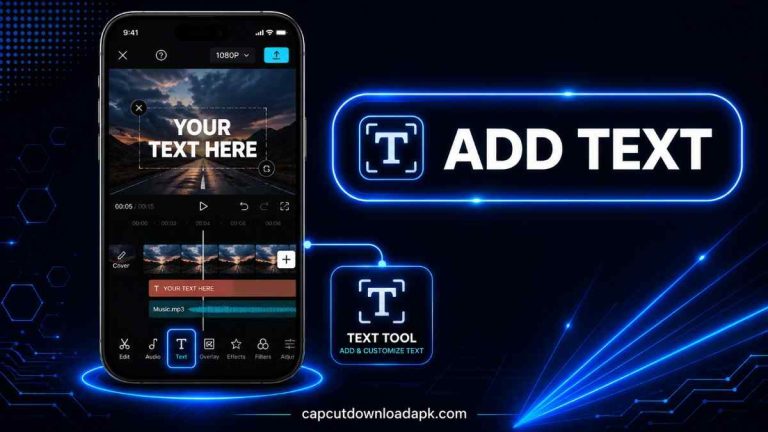
- Basic filters, stickers, and text overlays
- Music and sound effect library (smaller than CapCut’s)
- Aspect ratio presets for Instagram, TikTok, YouTube
- Speed control – slow motion and fast forward
- Canvas and background color options
Who Should Use InShot?
InShot is the better pick if you’re new to video editing altogether, or if you just need fast, no-frills edits without navigating a crowded toolbar. It’s also lighter on storage, which matters if you’re using an older phone with limited space.
CapCut vs InShot Feature Comparison
Here’s where the CapCut vs InShot comparison actually gets interesting the feature-by-feature breakdown of what each app handles well and where it comes up short. I’ve tested every category below on real projects rather than just reading a spec sheet, so this CapCut vs InShot breakdown reflects what actually happens when you’re editing, not just what each app claims on its store page.
Editing Tools
CapCut CapCut gives you a genuinely deep toolset for a free mobile app keyframing, masking, multi-track layering, and speed ramping are all built in. I’ve used the masking tool to cut a subject out of a background clip without touching a desktop editor, which says a lot about how far CapCut has come.
InShot InShot sticks to essentials: trim, cut, merge, and basic transitions. It doesn’t have keyframe animation or advanced masking, but for someone who just wants to combine a few clips and add music, that’s not a dealbreaker it’s actually a relief.
User Interface and Ease of Use
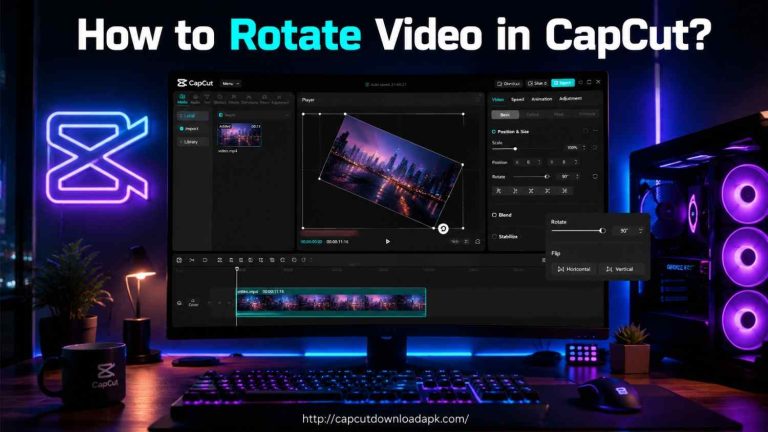
CapCut The interface is clean but dense. The first time I opened it, I’ll admit I spent a good ten minutes just tapping around to figure out where everything lived. Once it clicks, though, the timeline-based layout becomes second nature, and CapCut even nudges new users with in-app tutorials.
InShot This is where InShot has the edge. Everything sits within reach trim, add text, add music, export. There’s almost no learning curve, which is exactly why I recommend it to people editing their first video ever.
Video Effects, Filters, and Transitions
CapCut CapCut’s effects library is genuinely large, with trend-driven filters, glitch effects, and transitions that get refreshed often. If you’ve noticed a specific transition trending on TikTok, chances are CapCut added it within a week or two.
InShot InShot’s filter and transition set is smaller and more static. It covers standard color grading and basic transitions, which is enough for casual content but noticeably behind CapCut when it comes to variety.
Audio and Music Editing
CapCut This is one area where CapCut clearly pulls ahead. It supports multi-track audio, so you can layer background music, sound effects, and a voiceover at the same time. The royalty-free library is also larger and better organized by mood and genre.
InShot InShot supports a single audio track, which limits how layered your sound design can get. You can still add your own music and basic sound effects, but multi-track mixing simply isn’t part of the package.
Video Quality and Export Options
CapCut CapCut exports up to 4K resolution with adjustable frame rates, which matters if you’re posting content meant to hold up on a big screen or for a client who expects polished output.
InShot InShot’s free version caps out around 1080p, with 4K reserved for the Pro subscription. For everyday social content, 1080p is honestly still sharp enough most platforms compress video on upload anyway.
Templates and Ready-Made Assets
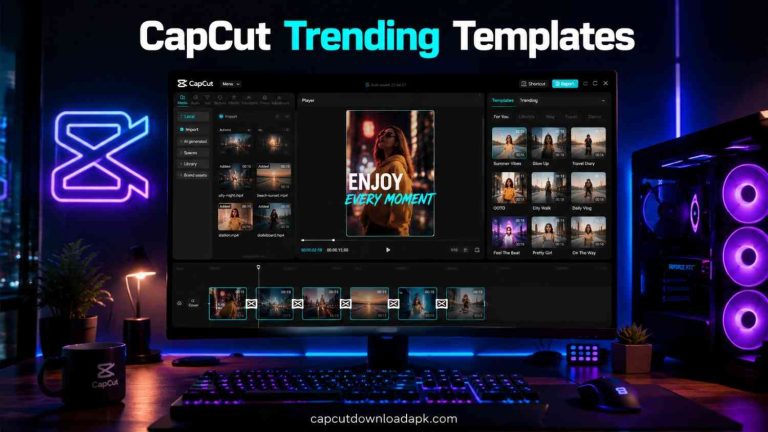
CapCut Templates are arguably CapCut’s biggest selling point right now. The library updates with whatever’s trending, so you can drop your own clips into a viral template structure without editing from scratch.
InShot InShot offers presets and slideshow templates, but they’re more static and general-purpose useful for things like birthday videos or simple photo montages, not trend-chasing content.
AI Editing Features
CapCut CapCut has invested heavily here auto-captions with solid accuracy across multiple languages, AI background removal, AI-generated video effects, and even AI voice tools. I use the auto-caption feature on almost every video I post now; it saves a genuine amount of time.
InShot InShot has started adding AI filters and effects, but the toolkit is much thinner. There’s no comparable auto-captioning or background-removal feature built into the core free experience.
Pricing and Premium Plans
CapCut CapCut is free to use with essentially all core editing tools unlocked. There’s a Pro tier for extra cloud storage and some premium AI features, but I’ve never felt forced to pay to get a finished, watermark-free video.
InShot InShot’s free version comes with a watermark and ads. Removing both requires a one-time or subscription upgrade to InShot Pro, which is worth knowing before you commit an hour to editing something you plan to post publicly.
Pros and Cons
Putting the CapCut vs InShot pros and cons side by side makes the trade-offs a lot clearer than scattered feature notes ever could.
CapCut Pros and Cons
Pros
- Free with no watermark
- Deep, professional-leaning toolset
- Huge trend-driven template library
- Strong AI features (auto-captions, background removal)
- Multi-track audio editing
Cons
- Slightly steeper learning curve for total beginners
- Larger app size, uses more storage
- Free video length has a cap on some export types
InShot Pros and Cons
Pros
- Extremely beginner-friendly
- Lightweight app, small file size
- Fast for quick, simple edits
- Clean, uncluttered interface
Cons
- Watermark and ads on the free version
- Single audio track only
- Smaller effects and template library
- No advanced tools like keyframing or masking
CapCut vs InShot: Which One Should You Choose?
The honest answer to CapCut vs InShot depends less on which app is “better” overall and more on what you’re actually trying to do. Here’s how I’d settle the CapCut vs InShot question for four common types of users.
Best for Beginners
InShot wins here. If you’ve never edited a video before, its simplicity means you’ll actually finish and post something instead of getting stuck exploring menus.
Best for Social Media Creators
CapCut is the stronger pick if you’re posting regularly. The template library alone can save hours, and features like auto-captions and AI effects help your content look current without extra apps.
Best for Professional Video Editing
CapCut again, mainly because of the multi-layer timeline, keyframing, masking, and 4K export. It’s not a full desktop editor, but it’s the closest thing to one on mobile that’s still free.
Best Value for Money
CapCut. Getting a watermark-free, high-quality export without paying anything is hard to beat, especially compared to InShot’s paywall for the same result.
Conclusion
After years of switching between the two depending on the job, my take on CapCut vs InShot is this: CapCut has simply grown into the more capable app, especially for anyone serious about short-form content. If I had to settle the CapCut vs InShot question for a friend in one sentence, I’d say: pick CapCut if you want to grow, pick InShot if you just want to post. It’s not the lightest or the simplest, but the free tier gives you tools that used to require paid desktop software.
That said, InShot hasn’t lost its place. For a quick edit, a smaller phone, or someone who just wants to post something without a learning curve, it’s still a reliable choice. I keep both installed CapCut for anything I want to look genuinely good, InShot for anything I need done in under five minutes.
Frequently Asked Questions
Here are quick answers to the questions people ask me most often about CapCut vs InShot.
Is CapCut better than InShot?
For most creators, yes CapCut offers more editing depth, a bigger template library, and stronger AI tools, all while staying free without a watermark. InShot is still a solid choice for very simple, quick edits.
Which app is easier for beginners?
InShot is easier to pick up immediately thanks to its minimal interface. CapCut has more tools, which means a slightly longer learning curve, though it becomes intuitive after a few edits.
Does CapCut offer more free features than InShot?
Yes. CapCut’s free version includes 4K export, no watermark, and advanced tools like keyframing and multi-track audio. InShot’s free version includes a watermark and ads unless you upgrade to Pro.
Which app exports better video quality?
Both apps support up to 4K, but CapCut offers this in its free tier, while InShot restricts 4K export to its paid Pro plan.
Which app is better for TikTok, Instagram Reels, and YouTube Shorts?
CapCut has a clear edge here because of its trend-driven templates, auto-captions, and effects that are updated frequently to match what’s currently popular on these platforms.