Best Free Fire CapCut Templates for Epic Gaming Edit
I’m not much of a gamer myself, but I’ve edited a fair number of Free Fire highlight videos for a cousin who genuinely lives for that Booyah moment at the end of a match. The first time I tried cutting his gameplay manually, matching every kill to the beat, timing the transitions myself, it took nearly an hour for a 20-second clip. Once I switched to using CapCut’s Free Fire templates instead, that same clip took about five minutes, and honestly looked more polished than my manual attempt did.
If you’re trying to turn your Free Fire clips into something worth posting, here’s what actually works, based on real editing sessions, not just scrolling through a template library once.
Best Free Fire CapCut Templates
Free Fire Game Level CapCut Template
Built around progression, this style syncs level-up visuals and rank badges with your gameplay footage, ideal if you’re showing off a climb through ranked matches or a particularly good grinding session.
Free Fire Booyah CapCut Template
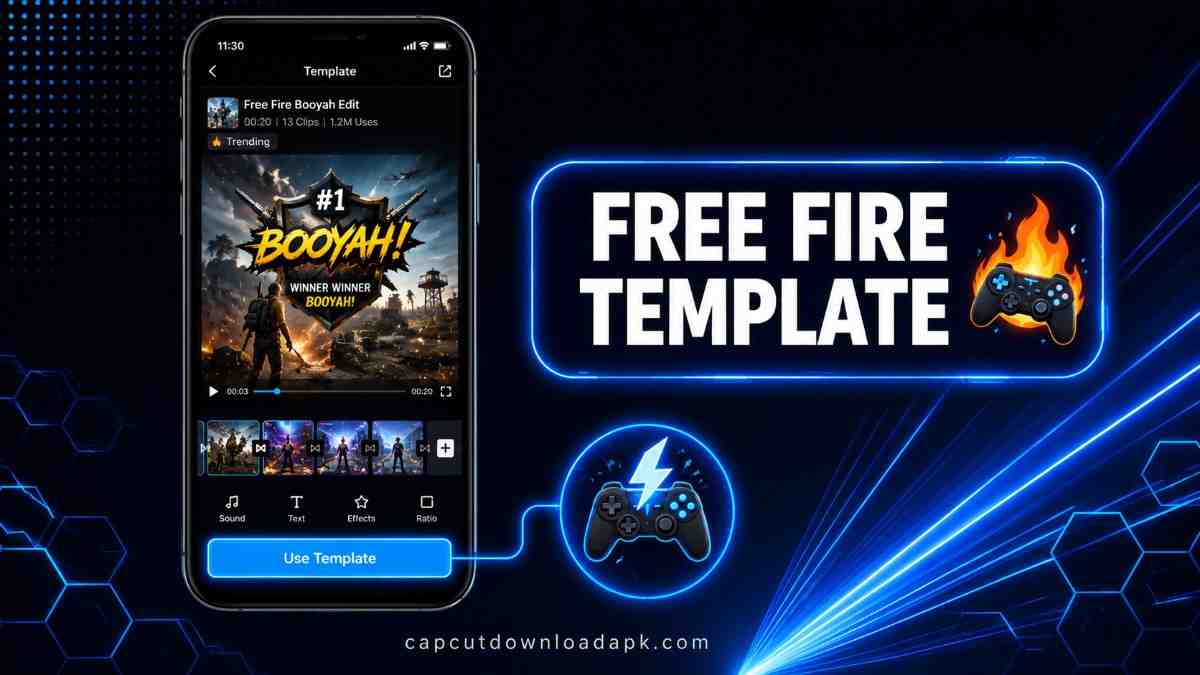
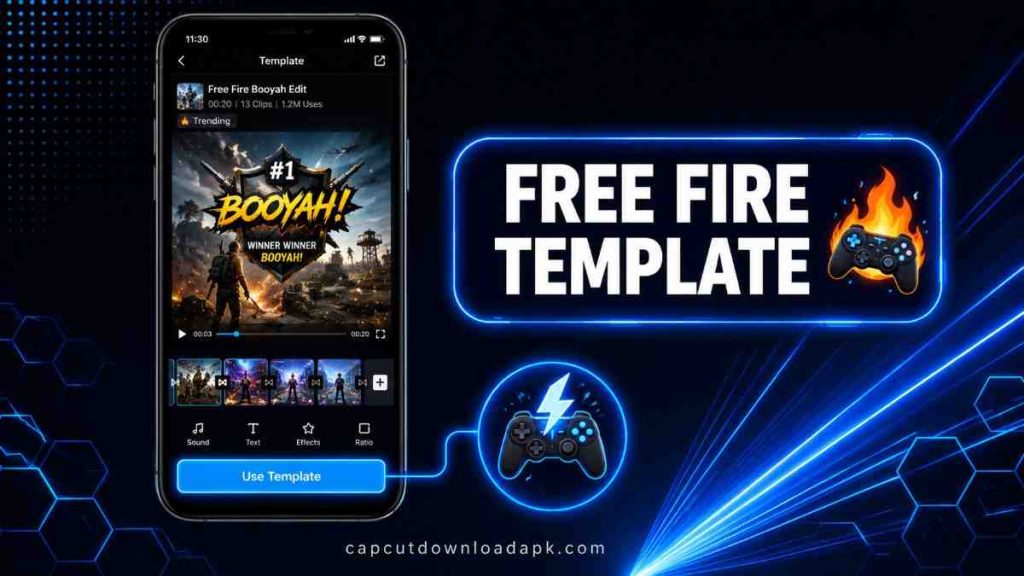
The one everyone actually wants. These templates are built specifically to hit that final “Booyah” screen with maximum impact, timed text, a beat drop, and a freeze-frame moment that makes the win feel like it deserves its own highlight reel.
Free Fire Slow Motion CapCut Template
Perfect for a clutch kill or a close final circle moment. Slowing the footage down right before the decisive shot adds tension that regular-speed footage just doesn’t capture the same way.
Free Fire DJ Beat Transition CapCut Template
These lean hard into rhythm, cuts and transitions timed precisely to a DJ-style beat drop. Works best with footage that already has some visual energy, multiple kills, fast movement, chaotic firefights.
Free Fire Beat Profile CapCut Template
A more character-focused style, built around showcasing your in-game profile, skins, and stats rather than pure gameplay. Good for players who’ve put real time into character customization and want that to actually show.
Features of Free Fire CapCut Templates
Free Fire Game-Themed Effects
Visual effects designed specifically around gaming aesthetics, glitch effects, rank badges, HUD-style overlays, that fit the Free Fire look far better than generic transition packs would.
Dynamic Transitions
Sharp, fast-paced cuts built for gaming content specifically, timed to keep pace with quick in-game action rather than the slower transitions you’d see in a lifestyle or travel edit.
Text Overlays
Pre-styled text for kill counts, rank achievements, or player callouts, already positioned and animated so you’re not building captions from scratch.
Soundtracks
Most templates come paired with gaming-appropriate music, high-energy tracks and DJ beats that match the pace of competitive gameplay footage.
Short Video Duration
Built for quick consumption, most of these templates run 15 to 30 seconds, matched to how people actually scroll through gaming content on social platforms.
Social Media Content
Designed with TikTok, Instagram Reels, and YouTube Shorts in mind, so the pacing and format are already optimized for where this content actually gets watched.
Vertical and Wide Aspect Ratio Videos
Templates come in both formats, vertical for short-form platforms, widescreen if you’re posting a longer highlight reel to YouTube, so you’re not stuck reformatting footage manually.
Who Should Use Free Fire CapCut Templates?
These templates make the most sense for players who record gameplay regularly and want to share highlights without spending real editing time on every clip, content creators building a gaming channel or TikTok presence around Free Fire specifically, and even casual players who just want one good clip from a memorable match without learning proper video editing. Basically, if you’ve got gameplay worth showing off and don’t want to manually sync every cut to a beat, this is exactly the shortcut it’s built for.
How to Use Free Fire CapCut Templates?
Choose a Free Fire Template
Search “Free Fire” in CapCut template tab and browse the available styles, Booyah, slow motion, beat transition, whichever fits the footage you’re working with.
Add Your Gameplay Clips or Photos
Fill the template’s media slots with your recorded gameplay footage or in-game screenshots. Templates automatically time and trim your clips to match the preset pacing.
Customize Text, Music, and Effects
Edit any placeholder text to reflect your actual username, rank, or kill count, and swap the music if you’d rather use a different track.
Adjust Transitions and Timing
Preview the edit and shift clips slightly if a transition or beat drop doesn’t land exactly on your best gameplay moment, small timing tweaks make a real difference here.
Preview Your Gaming Edit
Watch the full clip before exporting, gaming footage moves fast, so it’s easy to miss a slightly off transition on a quick first glance.
Export and Share Your Video
Export in your platform’s preferred resolution and aspect ratio, then share directly or save it for later posting.
Benefits of Using Free Fire CapCut Templates
The obvious one is speed, what used to take real manual syncing now takes minutes. Beyond that, these templates give even non-editors a genuinely professional-looking result, the pacing and effects are already dialed in by someone who’s clearly edited a lot of gaming content before. They’re also built specifically for how gaming content gets consumed, short, high-energy, beat-synced, so you’re not adapting a generic template to fit a gaming aesthetic, it’s already built for one.
Tips for Creating Better Free Fire Edits
Choose High-Quality Gameplay Clips
Templates can only work with what you give them. Recording at a higher resolution and frame rate makes the final edit noticeably crisper, especially during fast-motion sequences.
Match the Music With Your Gameplay
Pick footage that actually has energy to match a beat-heavy template, a slow, uneventful clip won’t land the same way inside a fast-cut DJ transition template.
Use Effects Without Overdoing Them
One well-placed glitch effect or freeze-frame reads as intentional. Five stacked effects on every cut starts to look chaotic instead of exciting.
Keep Your Edit Short and Engaging
Save the best 15 to 30 seconds rather than trying to fit an entire match. Viewers decide whether to keep watching gaming clips within the first couple of seconds.
Optimize Videos for Social Media
Match your aspect ratio and export settings to wherever you’re actually posting, vertical for TikTok and Reels, widescreen if it’s going to YouTube as a longer highlight compilation.
Frequently Asked Questions
Are Free Fire CapCut Templates Free to Use?
Yes, the vast majority of Free Fire templates are free within CapCut. A small number of premium options may require CapCut Pro, but you’ll have plenty of free choices.
How Do I Use a Free Fire CapCut Template?
Search “Free Fire” in CapCut’s template tab, select a style that fits your footage, fill in your gameplay clips, customize the text and music, then export.
Can I Add My Own Free Fire Gameplay Clips?
Yes, every template is built with editable media slots specifically for your own recorded footage or screenshots, replacing the template’s placeholder content.
Can I Customize Free Fire CapCut Templates?
Yes, text, music, and in some cases effect intensity can all be adjusted, letting you personalize the template while keeping its built-in pacing and structure.
Conclusion
Free Fire CapCut templates take care of the part that actually eats up editing time, the syncing, the pacing, the transitions, so all that’s left is picking your best gameplay moments and dropping them in. Whether it’s a clutch win worth slowing down or a Booyah screen that deserves a proper highlight, these templates turn raw footage into something worth sharing in a fraction of the time manual editing would take.