Velocity CapCut Templates Guide: Top Picks for Punchy Edits
I remember the first time a velocity edit actually stopped me mid-scroll, a clip that sped through a dozen outfit changes in about eight seconds, each cut snapping to the beat with this satisfying whip-pan motion between them. I assumed it took real editing skill, some kind of frame-by-frame speed manipulation I didn’t have the patience for. Turns out it was a CapCut template, and once I tried building my own version, I understood why this style blew up the way it did, it makes ordinary footage look like it was cut by someone who actually knows what they’re doing.
If you’ve been wanting to recreate that fast, punchy velocity look yourself, here’s what I’ve learned from actually using these templates across a handful of projects, not just watching other people’s edits and guessing.
What Is a Velocity CapCut Template?
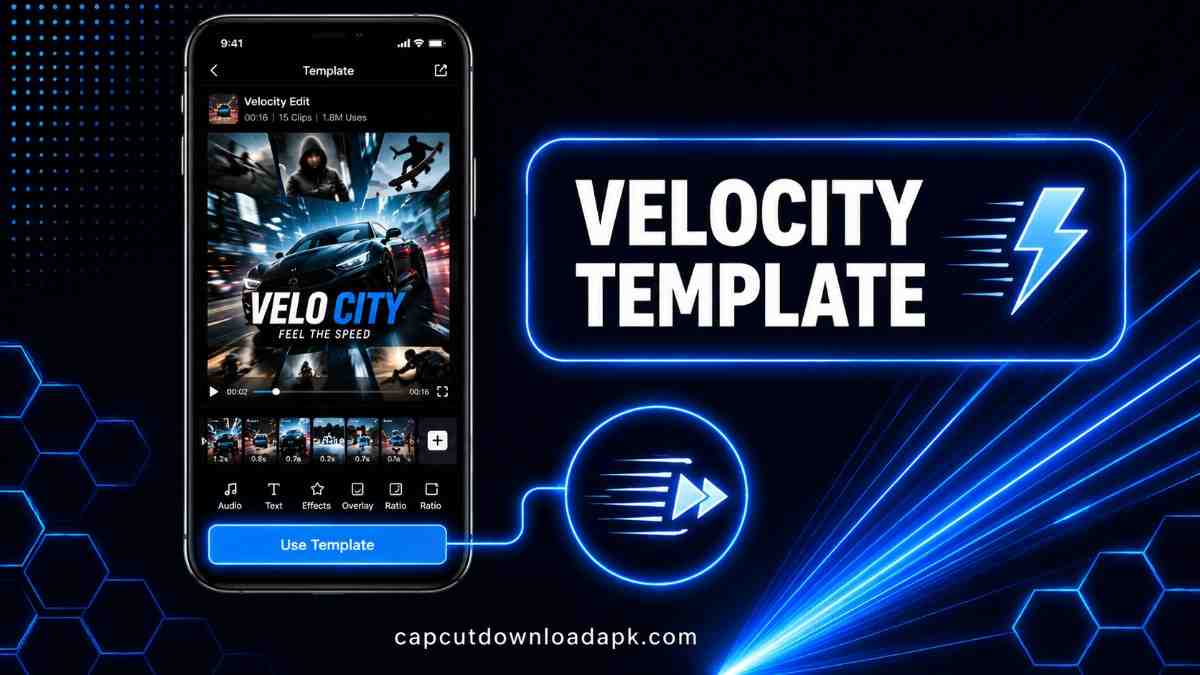
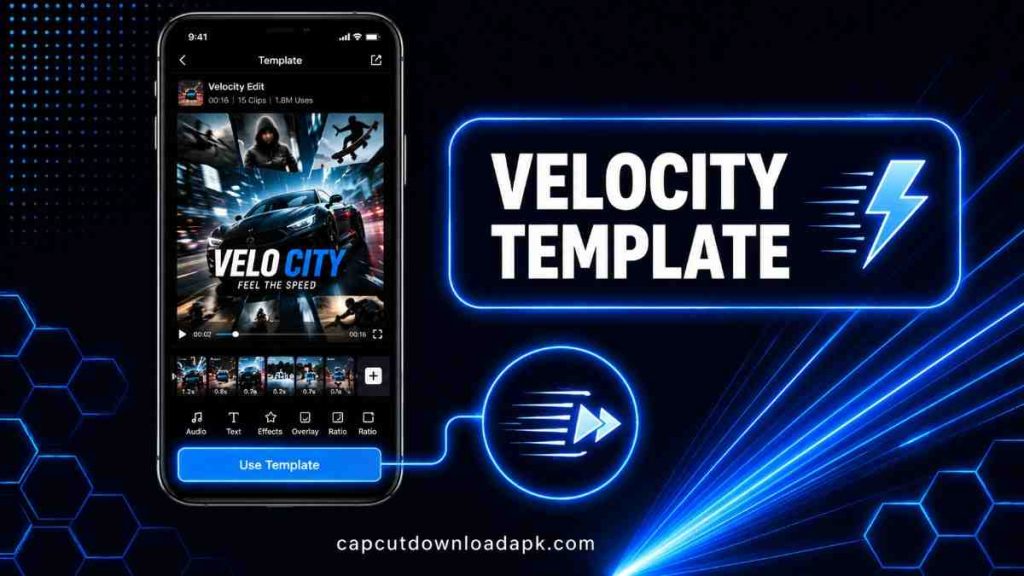
A velocity template is a video editing style built around rapid speed changes, sharp zoom transitions, and beat-synced cuts, creating that fast, punchy motion effect popular in trend edits across TikTok and Reels. Instead of smooth, gradual pacing, velocity edits lean into sudden shifts, quick zooms, snap transitions, brief slow-motion moments dropped between fast cuts, all timed tightly to a music track’s rhythm. It’s less about subtlety and more about impact, every cut is meant to land right on a beat.
Best Velocity CapCut Templates
Trending Velocity CapCut Template
The general-purpose version, built around whatever beat pattern happens to be popular at the moment. A safe starting point if you’re new to the style and want something that already matches current trends.
Face ID Velocity CapCut Template
This one plays on the iPhone Face ID scanning animation, framing your photos or clips as if they’re being “scanned,” a quirky, tech-inspired twist on the standard velocity format that tends to grab attention specifically because it’s a little different.
Glitch Velocity CapCut Template
Adds digital glitch effects, RGB splits, static flickers, screen tears, layered on top of the usual speed ramping. Works especially well for gaming content or anything with an edgier, high-energy tone.
Velocity Blur and Slow Motion Template
Balances the fast cuts with intentional motion blur and brief slow-motion moments, softening the pace just enough to keep the edit from feeling relentlessly fast from start to finish.
Velocity Beat Smooth Slow-Mo Template
A more polished, less chaotic take on the format, cuts still land on the beat, but the transitions themselves feel smoother and more deliberate rather than jarring.
Velocity Lyrics Edit Template
Pairs the speed-ramped visuals with synced lyric text on screen, useful if the song itself is part of the appeal and you want viewers reading along with what’s playing.
Velocity Thailand Edit Template
Combines the fast-cut velocity style with warmer, travel-inspired color grading, a good fit if you’re editing trip footage but still want that punchy, high-energy pacing rather than something slower and more reflective.
How to Use Velocity CapCut Templates?
Choose a Velocity Template
Search “Velocity” in CapCut’s template tab and preview a few styles, the pacing and intensity vary more between versions than you’d expect at a glance.
Add Your Photos or Videos
Fill in the template’s media slots with your own footage. Templates built around quick cuts work best with punchy, high-energy clips rather than slow, static shots.
Adjust Speed and Velocity Effects
Once your media is in place, fine-tune the speed ramping on individual clips if any feel too abrupt or not quite fast enough for the moment they’re paired with.
Sync the Edit With Music
Most velocity templates come with a preset track already synced to the cuts. If you swap the music, use CapCut’s beat-marking tool to re-align your transitions with the new track’s rhythm.
Customize Text, Effects, and Transitions
Adjust any placeholder text and tweak effect intensity, glitch, blur, whatever the template includes, so it fits your specific footage rather than looking purely default.
Preview and Export Your Video
Watch the full edit before exporting, fast-cut videos are easy to half-check and miss a mistimed transition on a quick skim.
Benefits of Using Velocity CapCut Templates
Create Smooth Speed Ramping Effects
Manually ramping speed on individual clips is finicky and time-consuming. These templates handle that transition work automatically, giving you that professional whip-fast feel without manual keyframing.
Save Time When Editing
What would normally take real trial and error to time correctly is already built into the template, you’re customizing rather than building from scratch.
Make Videos More Engaging
The fast pacing and beat-synced cuts are specifically built to hold attention, useful for anyone trying to stop the scroll in the first couple of seconds.
Create Trendy Social Media Edits
Velocity edits are a recognizable, currently popular style, using one puts your content in the same visual language viewers already associate with trending short-form content.
Tips for Creating Better Velocity Edits
Choose High-Quality Clips
Fast cuts and quick zooms expose low-resolution footage more than slower edits do. Start with the sharpest source material you have.
Match Velocity With the Beat
The entire effect depends on cuts landing precisely on the music’s rhythm, take the extra minute to fine-tune timing rather than leaving it slightly off.
Use Slow Motion and Blur Carefully
These elements work as contrast against the fast cuts, overuse them and the edit loses the punchy feeling that makes the style work in the first place.
Keep Transitions Smooth
Even within a fast-paced style, jarring or poorly timed transitions read as sloppy rather than intentional. Small timing adjustments make a real difference here.
Avoid Overusing Effects
Glitches, blur, and zoom are meant to punctuate specific moments, not run constantly. Reserve the heavier effects for your strongest beats or clips.
Preview the Full Video Before Exporting
Fast-cut edits hide timing mistakes more easily than slower content, always watch the complete edit at full speed before finalizing.
Where to Use Velocity CapCut Templates
TikTok Videos
The format practically originated in this space, quick, punchy, beat-driven content is exactly what performs well on the platform.
Instagram Reels
Same energy as TikTok, velocity edits translate directly with little to no adjustment needed between the two platforms.
YouTube Shorts
Works just as well here, particularly for quick highlight-style content or trend recreations aimed at a short-form audience.
Gaming and Trending Edits
Especially the Glitch Velocity variant, this style pairs naturally with gaming highlight reels or any trend-based content where high energy is the whole point.
Frequently Asked Questions
What Is Velocity Editing in CapCut?
Velocity editing refers to a fast-paced style built around rapid speed changes, snap transitions, and beat-synced cuts, designed to create punchy, high-energy videos rather than smooth, gradual pacing.
How Do I Use a Velocity CapCut Template?
Search “Velocity” in CapCut’s template tab, choose a style that fits your footage, add your photos or videos to the media slots, customize the timing and effects, then export.
Can I Add My Own Photos and Videos?
Yes, every velocity template includes editable media slots designed specifically for your own footage, replacing the placeholder content the template ships with.
Are Velocity CapCut Templates Free?
Yes, the majority of velocity templates are available for free within CapCut, with only a small number of premium variations requiring CapCut Pro.
How Do I Make a Smooth Velocity Edit in CapCut?
Focus on precise beat-matching when placing your cuts, use slow motion and blur sparingly for contrast rather than throughout, and always preview the full edit at normal speed before exporting to catch any transitions that feel off.
Conclusion
Velocity CapCut templates take one of the more technically fiddly editing styles and make it genuinely accessible, no manual speed-ramping, no guessing at beat timing. Pick footage with real energy to work with, match your pacing to the music carefully, and you’ll end up with an edit that looks like it took a lot more manual work than it actually did.